> ## Documentation Index
> Fetch the complete documentation index at: https://fruitstand.dev/llms.txt
> Use this file to discover all available pages before exploring further.
# Connect Fruit Stand to the Claude Desktop App
> Add the Fruit Stand Fund Returns MCP server to the Claude Desktop app as a custom connector, using your API key as a Bearer token.
*By Fruit Stand Team · September 6, 2026 · Guides*
The Fruit Stand Fund Returns [MCP server](https://api.fruitstand.dev/mcp) lets you pull trailing and calendar-year returns for 32,000+ US funds and ETFs straight into a Claude conversation. This guide walks through adding it to the **Claude Desktop app** as a custom connector, authenticated with your API key.
There's no OAuth today — the server authenticates with an API key sent as a **Bearer token** in a request header. That one detail trips people up, so read the callout in Step 3 carefully.
## Before you start
You'll need two things:
* **A paid Claude plan.** Custom connectors are available on Claude Pro, Max, Team, and Enterprise, not the free tier.
* **A Fruit Stand API key.** If you don't have one yet, grab a free key below. If you already have an account, open your dashboard to copy it.
New to Fruit Stand? Our pricing page has a free tier that's enough to get started — no card required.
Already have an account? Copy your API key from your subscriptions dashboard.
## Step 1: Open the custom connector dialog
In the Claude Desktop app, go to **Settings → Connectors**, scroll to the bottom, and click **Add custom connector**.
## Step 2: Name the connector and enter the server URL
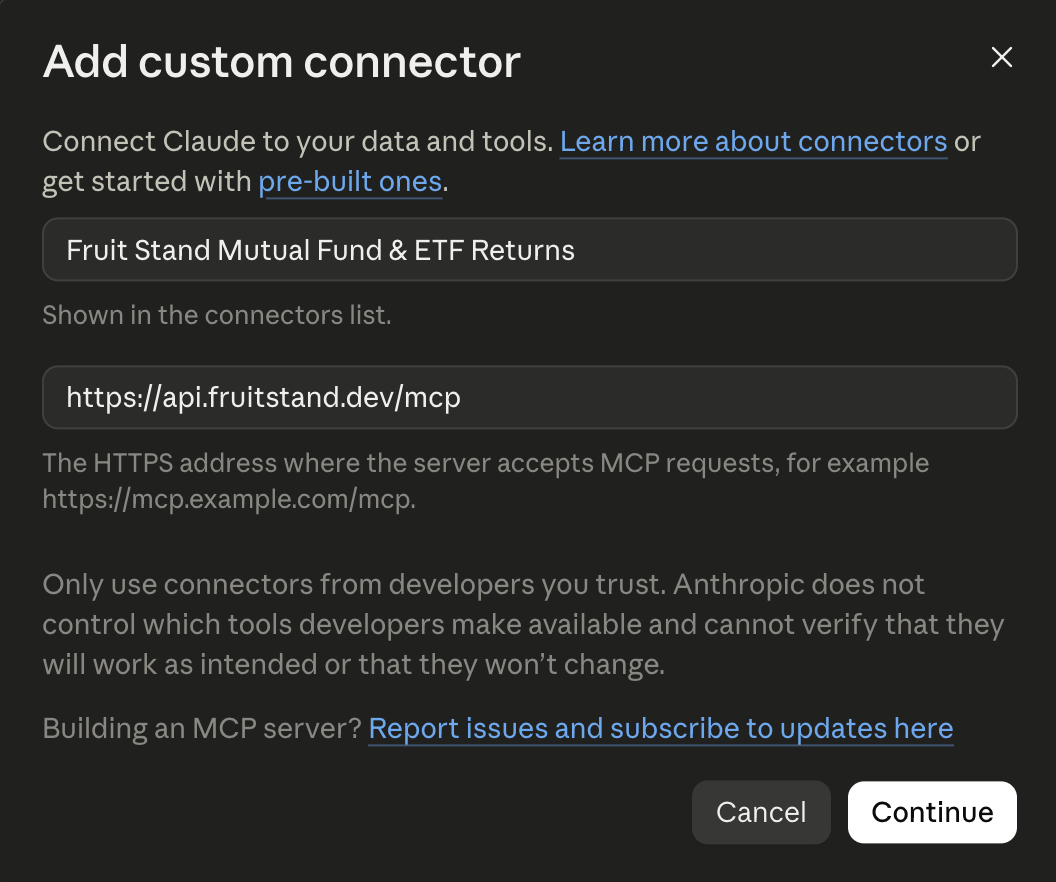
Give the connector a name you'll recognize in your connectors list, then enter the Fruit Stand MCP server URL:
```text theme={null}
https://api.fruitstand.dev/mcp
```
Click **Continue**.
 ## Step 3: Set authentication to None and add your API key header
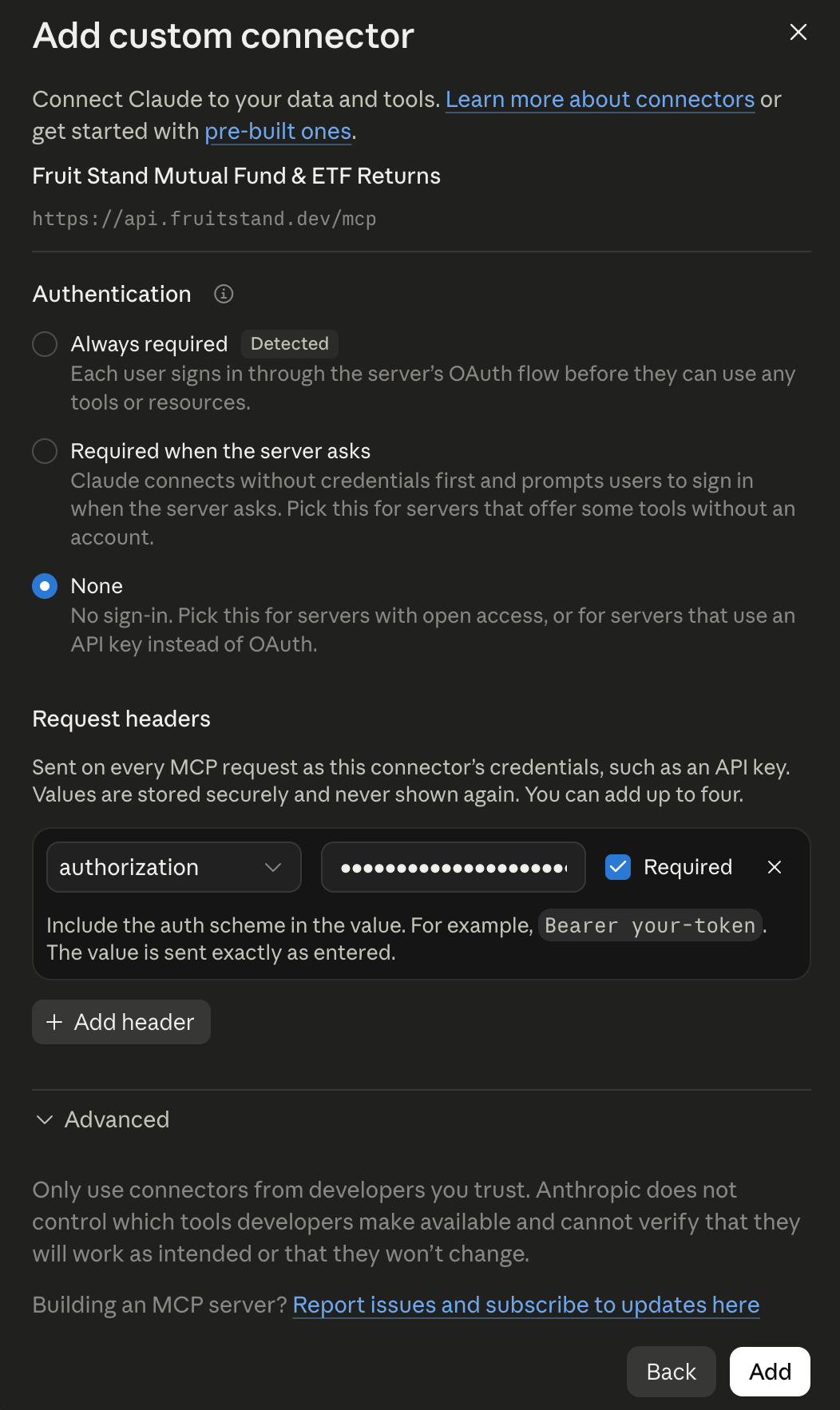
On the next screen, under **Authentication**, select **None** — the server uses an API key rather than OAuth.
Then, under **Request headers**, add one header:
* **Header name:** `authorization`
* **Value:** your API key, prefixed with `Bearer ` (see the warning below)
* Leave **Required** checked.
**In the value field, type `Bearer ` — the word "Bearer" followed by a single space — before your API key.** The header value is sent exactly as you enter it, so the space after `Bearer` is required. A bare key, or `Bearer` with no space, will fail to authenticate.
✅ Correct: `Bearer zpka_xxxxxxxxxxxxxxxxxxxxxxxxxxxx_xxxxxxxx`
❌ Wrong: `zpka_xxxxxxxxxxxxxxxxxxxxxxxxxxxx_xxxxxxxx`
❌ Wrong: `Bearerzpka_xxxxxxxxxxxxxxxxxxxxxxxxxxxx_xxxxxxxx`
Click **Add**.
## Step 3: Set authentication to None and add your API key header
On the next screen, under **Authentication**, select **None** — the server uses an API key rather than OAuth.
Then, under **Request headers**, add one header:
* **Header name:** `authorization`
* **Value:** your API key, prefixed with `Bearer ` (see the warning below)
* Leave **Required** checked.
**In the value field, type `Bearer ` — the word "Bearer" followed by a single space — before your API key.** The header value is sent exactly as you enter it, so the space after `Bearer` is required. A bare key, or `Bearer` with no space, will fail to authenticate.
✅ Correct: `Bearer zpka_xxxxxxxxxxxxxxxxxxxxxxxxxxxx_xxxxxxxx`
❌ Wrong: `zpka_xxxxxxxxxxxxxxxxxxxxxxxxxxxx_xxxxxxxx`
❌ Wrong: `Bearerzpka_xxxxxxxxxxxxxxxxxxxxxxxxxxxx_xxxxxxxx`
Click **Add**.
 ## Step 4: Confirm the connection and tools
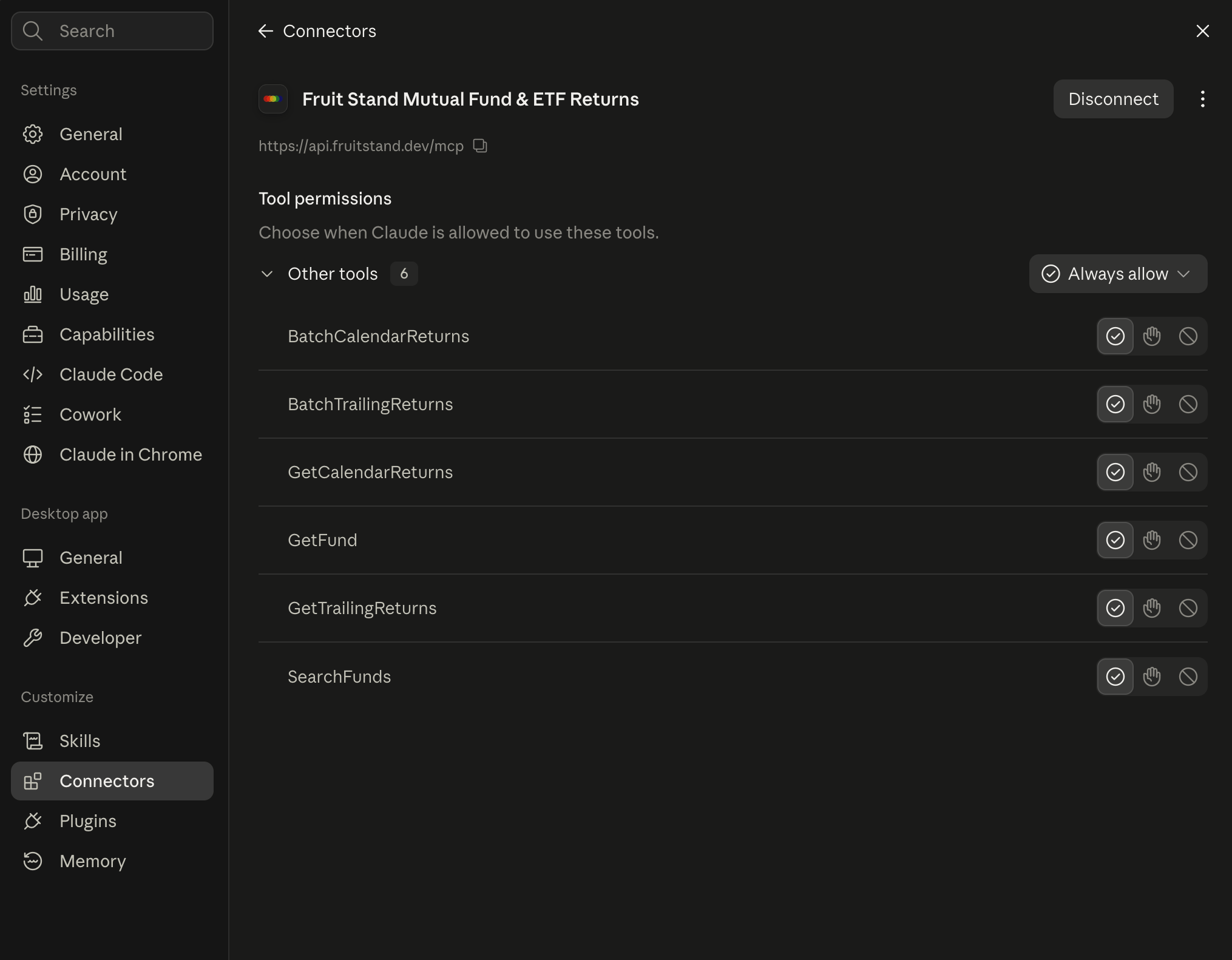
Back on the Connectors page, the connector shows as connected with its tools listed under **Tool permissions**. You'll see the Fund Returns tools — `SearchFunds`, `GetFund`, `GetTrailingReturns`, `GetCalendarReturns`, `BatchTrailingReturns`, and `BatchCalendarReturns`. Set them to **Always allow** (or leave them to prompt) depending on how much you want Claude to ask first.
## Step 4: Confirm the connection and tools
Back on the Connectors page, the connector shows as connected with its tools listed under **Tool permissions**. You'll see the Fund Returns tools — `SearchFunds`, `GetFund`, `GetTrailingReturns`, `GetCalendarReturns`, `BatchTrailingReturns`, and `BatchCalendarReturns`. Set them to **Always allow** (or leave them to prompt) depending on how much you want Claude to ask first.
 ## Step 5: Try it out
Start a new chat and ask something the data can answer, for example:
> Search for funds matching "total stock market" and show me the 1-, 5-, and 10-year trailing returns for the closest match.
Claude will call the Fruit Stand tools and answer from live data.
## Troubleshooting
Nearly always the `Bearer ` prefix. Re-open the connector's request header and confirm the value is `Bearer` + a single space + your key, with no extra spaces before or after. Because the value is hidden after saving, the quickest fix is to delete the header and re-add it.
Custom connectors require a paid Claude plan (Pro, Max, Team, or Enterprise). On the free tier the option isn't shown.
Open your [subscriptions dashboard](https://app.fruitstand.dev/subscriptions) to view and copy your key. Need one? Start free on the [pricing page](/pricing).
Questions? Reach out at [contact@fruitstand.dev](mailto:contact@fruitstand.dev).
## Step 5: Try it out
Start a new chat and ask something the data can answer, for example:
> Search for funds matching "total stock market" and show me the 1-, 5-, and 10-year trailing returns for the closest match.
Claude will call the Fruit Stand tools and answer from live data.
## Troubleshooting
Nearly always the `Bearer ` prefix. Re-open the connector's request header and confirm the value is `Bearer` + a single space + your key, with no extra spaces before or after. Because the value is hidden after saving, the quickest fix is to delete the header and re-add it.
Custom connectors require a paid Claude plan (Pro, Max, Team, or Enterprise). On the free tier the option isn't shown.
Open your [subscriptions dashboard](https://app.fruitstand.dev/subscriptions) to view and copy your key. Need one? Start free on the [pricing page](/pricing).
Questions? Reach out at [contact@fruitstand.dev](mailto:contact@fruitstand.dev).